Product Import Export Plugin
A Vendure plugin for importing and exporting product data via CSV. Supports bulk product management and data migration between environments.
Features
- Import – Bulk upload products from CSV with validation, custom fields, assets, facets, and variants
- Export – Export products to CSV with selected fields; export all products or a selection
- Storage strategies – Store exported files in S3 or locally on disk (with automatic fallback)
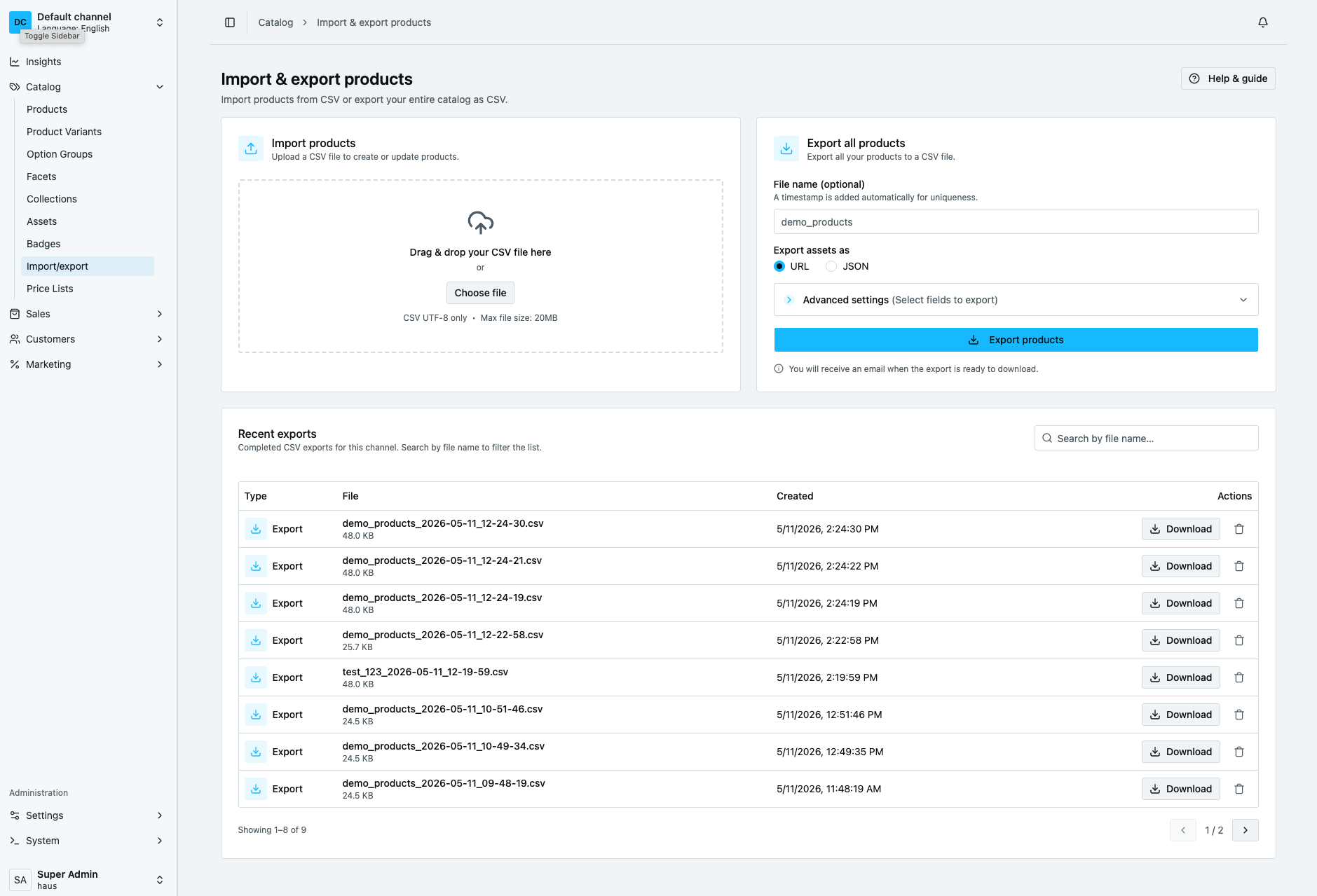
- UI – Admin UI and Dashboard integration for import and export
Compatibility
Vendure ^3.6.0
Getting started
npm install @haus-tech/product-import-export-plugin
Configuration
Add the plugin to your Vendure configuration.
export const config = {
  plugins: [
    ProductImportExportPlugin.init({
      importOptions: {}, // Configure import options
      exportOptions: {
        storageStrategy: 's3', // 's3' | 'disk'
        s3Options: {
          bucket: 'your-bucket',
          region: 'your-region',
          credentials: {
            accessKeyId: '...',
            secretAccessKey: '...',
          },
        },
      },
    }),
  ],
}
Configuration Options
Import options
| Option | Type | Default | Description |
|---|---|---|---|
updateProductSlug | boolean | true | Update product slug from the name field in the CSV |
restoreSoftDeleted | boolean | true | Restore soft-deleted products/variants found by id or SKU during import. If false, new products will be created instead. |
storageStrategy | ImportJobStorageStrategy | local disk | Strategy instance for queued import file storage and retrieval. |
storageStrategyFactory | (injector: Injector) => ImportJobStorageStrategy | undefined | Factory for DI-aware strategy creation (recommended for S3/remote storage). |
importJobStorage | 'local' | 's3' | 'local' | Deprecated compatibility flag. Prefer storageStrategy / storageStrategyFactory. |
Available import storage strategies:
LocalImportJobStorageStrategy(default)S3ImportJobStorageStrategy
Export options
| Option | Type | Default | Description |
|---|---|---|---|
defaultFileName | string | 'products_export.csv' | Default filename for exports |
exportAssetsAsOptions | ('url' | 'json')[] | ['url', 'json'] | Available formats for asset export |
defaultExportAssetsAs | 'url' | 'json' | 'url' | Default asset export format |
defaultExportFields | string[] | See above | Fields that will be pre-selected in the export UI |
requiredExportFields | string[] | ['name', 'sku'] | Fields that must always be included |
storageStrategy | 's3' | 'disk' | 'disk' | Where exported files are stored |
s3Options | object | undefined | S3 configuration (required when storageStrategy is 's3') |
Storage strategy
The plugin supports configurable storage for exported files:
- S3 – Stores export files in an S3-compatible bucket
- Disk (default) – Saves files locally on the server
CSV Format for Import
Required columns
name– Product name (usename:en,name:svetc. for multiple languages)sku– Variant SKU (unique per variant)
Optional columns
| Column | Format | Example |
|---|---|---|
name, slug, description | Text, or name:en, name:sv for translations | My Product |
assets | Pipe-separated URLs, or JSON [{"url":"...","name":"..."}] | https://example.com/1.jpg|https://example.com/2.jpg |
facets | facet:value pairs, pipe-separated | Brand:Acme|Category:Electronics |
optionGroups | Pipe-separated group names. Use name:code to share a group across products (see Sharing option groups) | Size|Color or size:shoe-size |
optionValues | Pipe-separated values (order matches option groups) | Large|Blue |
price | Number (in smallest currency unit) | 9999 |
taxCategory | Tax category name | standard |
stockOnHand | Number | 100 |
trackInventory | true or false | true |
variantAssets | Same format as assets | https://example.com/variant.jpg |
variantFacets | Same format as facets | Material:Cotton |
enabled | true or false | true |
| Custom fields | Column name = custom field name; value depends on field type | Add columns for any Product or ProductVariant custom fields defined in your Vendure config |
Import behavior rules
- If a column is omitted from the CSV header, that field is left unchanged on existing products/variants.
- If a column exists in the header but the cell is empty, that field is explicitly cleared.
- For products with more than one variant,
optionGroupsandoptionValuesare required.
Sharing option groups
By default, each product gets its own option groups. To share an option group across
multiple products (e.g. a common "Size" group for all shoes), use the name:code syntax in the
optionGroups column: size:shoe-size. All products that reference the same code will share
a single option group. Products using a plain name (e.g. just size) will each get their own
independent option group.
...optionGroups     , optionValues , ...
# Each shoe product shares a single "shoe-size" option group:
"size:shoe-size"    , Small        , ...
"size:shoe-size"    , Medium       , ...
# This product gets its own independent "size" group:
"size"              , 4GB          , ...
The first product to reference a given code defines the full set of option values for that
shared group; subsequent products may use any subset of those values. Codes are language-
agnostic — only the name portion before the colon is translated per language column
(optionGroups:en, optionGroups:sv, etc.).
Multi-language support
Use language-specific columns by suffixing the field name with the language code. The language codes must match those configured in your Vendure instance (e.g. en, sv).
| Column pattern | Example columns | Use case |
|---|---|---|
name:en, name:sv | Product name per lang | Translated product names |
slug:en, slug:sv | Slug per lang | Translated URLs |
description:en | Description per lang | Translated descriptions |
facets:en, facets:sv | Facets per lang | Translated facet names and values |
optionGroups:en | Option groups per lang | Translated option group names (e.g. Size, Color) |
optionValues:en | Option values per lang | Translated option values (e.g. Large, Blue) |
Example CSV with English and Swedish:
name:en,name:sv,sku,facets:en,facets:sv
"Red Shirt","Röd tröja",SHIRT-001,"Color:Red|Size:Large","Färg:Röd|Storlek:Stor"
Multiple values (pipe separator)
Fields that can have multiple values use the pipe character | as a separator:
- Facets:
Brand:Acme|Category:Electronics - Option groups:
Size|Color - Option values:
Large|Blue(order matches option groups) - Assets:
https://example.com/1.jpg|https://example.com/2.jpg
Usage
The Admin UI offers basic import and export. Some features such as the export-all option and the list of exported files are only available in the Dashboard. New features will be added to the Dashboard only.
Importing products
- Create a CSV with the columns above.
- Go to the Admin UI or Dashboard and open the Product Import section.
- Upload the CSV and choose options (update slugs, restore soft-deleted, main language).
- Select the update strategy: merge (keep existing facets/assets) or replace (overwrite).
- Start the import.
Exporting products
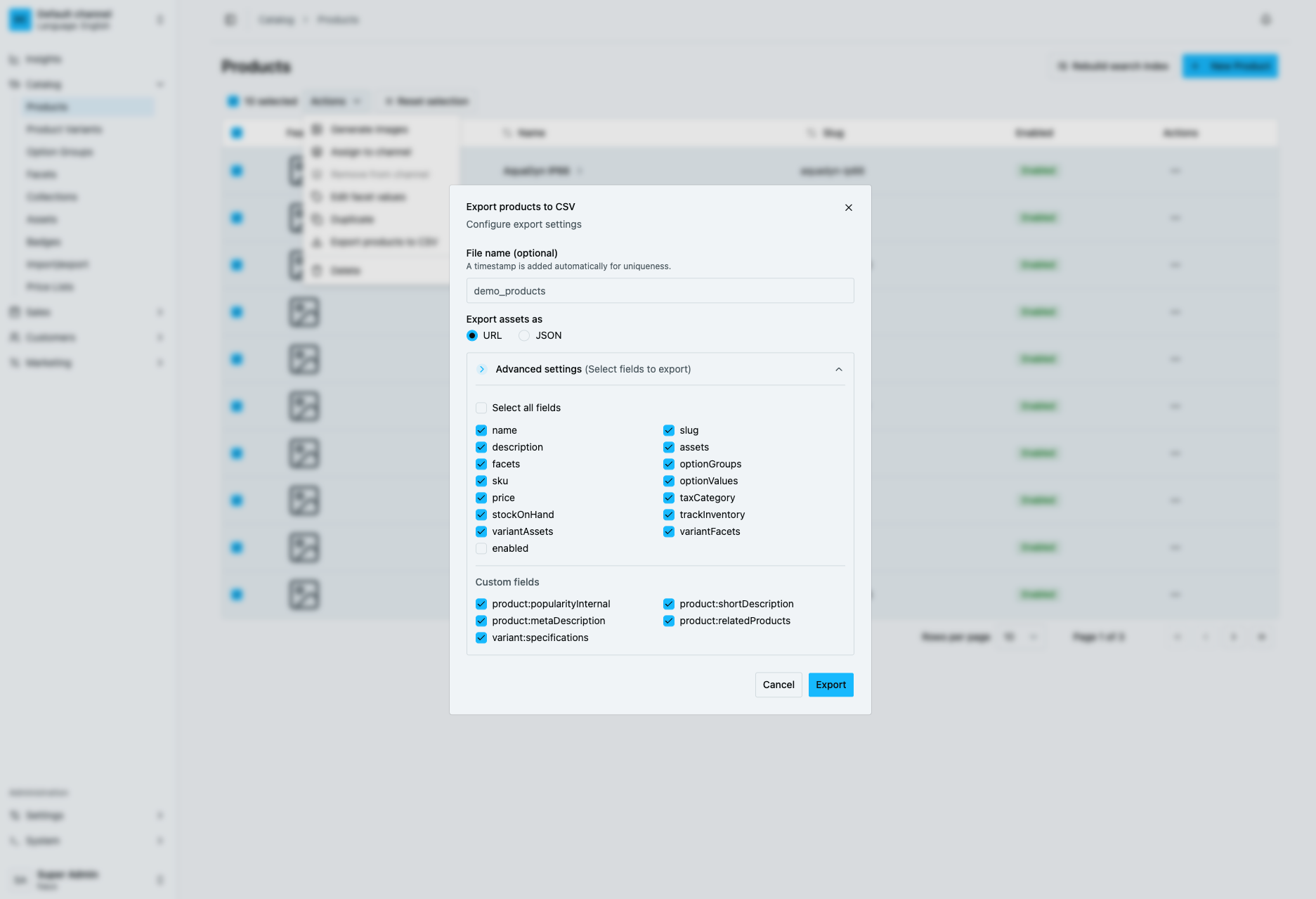
- In the Admin UI or Dashboard, select products to export (or use bulk export).
- Configure export fields (assets, facets, custom fields, etc.).
- For products with more than one variant,
optionGroupsandoptionValuesmust be included. productIdis not available as a selectable export field.- If
customFieldsare not selected, no custom-field columns are written to the CSV.
- For products with more than one variant,
- Choose asset format: URL or JSON.
- Start the export (it is added to a job queue and runs in the background).
- Download the CSV when the export is complete. Your downloaded files will be listed in the export view.
Optional: Email notification on export complete
If you use @vendure/email-plugin, you can add an email notification when an export finishes from the /email subpath.
The plugin now provides a default fallback template for product-export-complete/body.hbs.
If you define your own template in your app's template directory, your template takes precedence.
Note: templates for @vendure/email-plugin should be valid MJML.
import path from 'path'
import {
  DefaultEmailPlugin,
  FileBasedTemplateLoader,
  defaultEmailHandlers,
} from '@vendure/email-plugin'
import {
  withProductExportedHandler,
  withProductExportedTemplateFallback,
} from '@haus-tech/product-import-export-plugin/email'

export const config = {
  plugins: [
    DefaultEmailPlugin.init({
      handlers: withProductExportedHandler(defaultEmailHandlers),
      templateLoader: withProductExportedTemplateFallback(
        new FileBasedTemplateLoader(path.join(__dirname, '../static/email/templates')),
      ),
    }),
  ],
}